
Rebuilt PPE Gear List: Find, filter, and report on your gear in one place
The PPE Gear List has been rebuilt on a much more capable table. Everything you did before still works, but searching, filtering, customizing, and reporting are now faster and more flexible.
Key Features
- Single Actions Menu: Check the box on one or more items and use the single Actions button at the top — Log Event, Edit, Assign, Change Status, Schedule Event, Retire, or Delete. This replaces both the per-row Actions button and the old Batch button. Options that only make sense for one item grey out when more than one is selected.
- One-Click Details: Click an item's Type — now a link — to open its Details and History.
- Smarter Search and Filtering: The Search box highlights matches as you type. Every column has its own filter field beneath the header, and the filter icon opens advanced options — Contains, Equals, Blank, and more — plus a checklist for picking multiple values at once, like several users or several gear types.
- Flexible Sorting: Click a header to sort ascending, again for descending, and a third time to clear it.
- Custom Column Layouts: The Columns panel on the left replaces the old View dropdown. Check or uncheck columns to show or hide them, drag headers to reorder, and drag edges to resize. Each header's three-dot menu adds pinning, autosizing, grouping, and resetting the layout.
- New Edit Mode: Fix values like serial, model, size, cost, or dates directly in the grid and save them all at once.
- Saved Views: Once your list looks the way you want, click the plus next to All to save it as a view. Views appear as tabs, are saved to your account, and follow you across devices. Use the three-dot menu on a view tab to Save changes, Reset, Rename, or Delete.
- Reporting Inside the List: Drag any column into Row Groups to organize items under collapsible headers, and drag a column like Cost into Values to total it per group. Turn on Pivot Mode to build a cross-tab — gear type by person, for example — to quickly see who has what and where the gaps are.
ℹ️View detailed instructions here.
New Multi-Time Scheduling: Set vehicle and station tasks to come due up to three times a day
Some checks need to happen more than once a day, and now PSTrax can schedule them that way. A new interval option lets you set a vehicle or station task to come due at the specific times you choose — shift change, mid-shift, and end of day, for example — instead of resetting once at midnight.
Key Features
- Up to Three Times Daily: Choose the exact times a task comes due, so recurring checks line up with how your crews actually work rather than a single midnight reset.
- Times Shown Alongside Dates: Scheduled and next-due times now appear everywhere dates are displayed — apparatus schedules, full schedule pages, and due-date reports — so crews can see exactly when the next one is expected.
- Real-Time Overdue Status: A task counts as late the moment its scheduled time passes, using your department's local time, so the highlighting on your check pages reflects what's actually overdue right now.
Life-Assist Integration Update: Lot numbers and expiration dates arrive with your orders
Receiving a Life-Assist order in PSTrax now fills in the details for you. When your shipment includes lot numbers and expiration dates, PSTrax pulls that information straight from Life-Assist and populates the existing fields in the receiving flow.
Key Features
- Auto-Populated Fields: Lot and expiration data comes over with the order, so instead of reading it off the box and typing it in, you confirm what's already there and move on.
- Complete Inventory Records: Every item you receive lands in inventory with its lot and expiration on record from day one — exactly what you need when a recall notice arrives or an expiration report comes due.
- Faster Receiving at Scale: For departments receiving large medical-supply orders, this removes the slowest and most error-prone part of putting a shipment away.
Other features, enhancements, and bug fixes
Vehicle & Station
- Improved Fleet Compliance Report user experience on phones and tablets: The new Fleet Compliance Report has been updated to ensure that the information easier to read and navigate on small screens. Rows now render as cards, carrying the same information without horizontal scrolling.
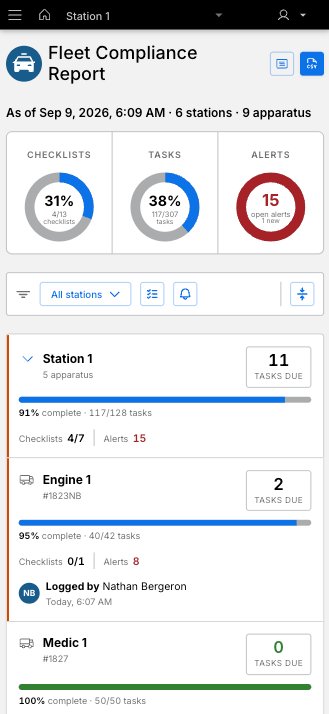
- Accurate open alerts counts on the Fleet Compliance Report: We fixed an issue where the Fleet Compliance Report's Open Alerts metric reported the number of closed alerts instead of open ones — at department, station, and apparatus level — which meant the count grew as your crews resolved work. Open Alerts now matches what you see on your Open Alerts page, and the corrected value carries through to the "Only with open alerts" filter and your CSV export.
- A legible printable report in dark mode: We updated the dark mode view on the Fleet Compliance Report, adding more contrast so the information can be read more easily.
- Expand / collapse button for quicker control: On the Fleet Compliance Report, we added "Collapse all" and "Expand all" buttons to allow you to quickly find the information you're looking for without having to scroll endlessly. This is particularly helpful for agencies that have a lot of stations and vehicles.
Assets, PPE & SCBA
-
Safer batch actions on the Full Schedule pages: The batch delete and retire buttons have been removed from the Full Schedule pages in PPE, SCBA, and Assets. Some users have accidentally clicked those buttons thinking they were deleting or retiring a scheduled event, when in actuality they were deleting or retiring the gear - an easy mistake since the text was ambiguous. Deleting and retiring gear is still available via the Gear List for administrators.
Supplies & Procurement
- The full Bound Tree pharmaceutical catalog is available: We worked with Bound Tree to fixed an issue where the filter that keeps controlled substances out of the product catalog was excluding all pharmaceutical products, not just controlled ones. Non-controlled pharmaceuticals are now visible and available to purchase, with only genuine controlled substances filtered out.
- A reliable default shipping address for every vendor: We fixed an issue where a vendor could end up with more than one address flagged as the default, which made the "Make Default" action unreliable and left it unclear which address an order would actually ship to. Each vendor now holds exactly one default address, and setting a new default cleanly replaces the previous one.
- Longer address names now save without error: We fixed an issue where an address name longer than 100 characters was resulting in a "Failed to add address" message with no explanation. This has been updated so address names up to 255 characters now save successfully on the Procurement cart's Review & Submit page.
Controlled Substances
- Container swaps that move the replacement box onto the unit: For agencies using a moveable container setup, we fixed an issue where swapping a sealed container during a CS check moved the outgoing container correctly but never registered the incoming replacement to the apparatus. The check reported success and both legs appeared in your CS Location Logs, but the replacement box wasn't selectable on the next crew's check until an admin manually logged a Container Moved In. The swap now updates both containers' locations together, and the replacement-container list no longer offers the duplicate and non-container entries that caused the failure.
- Record partial quantities for volume-based tracking: For agencies set up with volume-based tracking (rather than vial-based), you can now input decimal values when logging inventory, restock, usage, or transfer events. Decimal quantities save exactly as entered and display accurately on your inventory ledger, history logs, and supervisor reports.
Blood Products
- Event and Transaction Logs that load every time: We fixed an issue where the Blood Products Event Log and Transaction Log pages failed with a server error and showed no records at all if the log contained an entry for anything other than a blood container — an equipment task, for example. Both listings now handle any entry type, so the page loads normally regardless of what's in the log.
Platform-wide
- Choose your department when signing in with SSO: If your email address is set up for single sign-on at more than one PSTrax department, the SSO sign-in page now asks which department you want to enter before handing you off to your organization's login screen. After you authenticate, you land in the department you selected. This lets people who work across two departments use one email address for SSO at both, instead of needing a separate address for each.