
Organize your Asset Types with one-click alphabetization
We’ve standardized how Asset Types are managed across all accounts and introduced a new "Alphabetize" button to save you time. New asset types will now consistently be added to the bottom of your list, and with a single click, you can instantly reorder your entire list from A to Z.
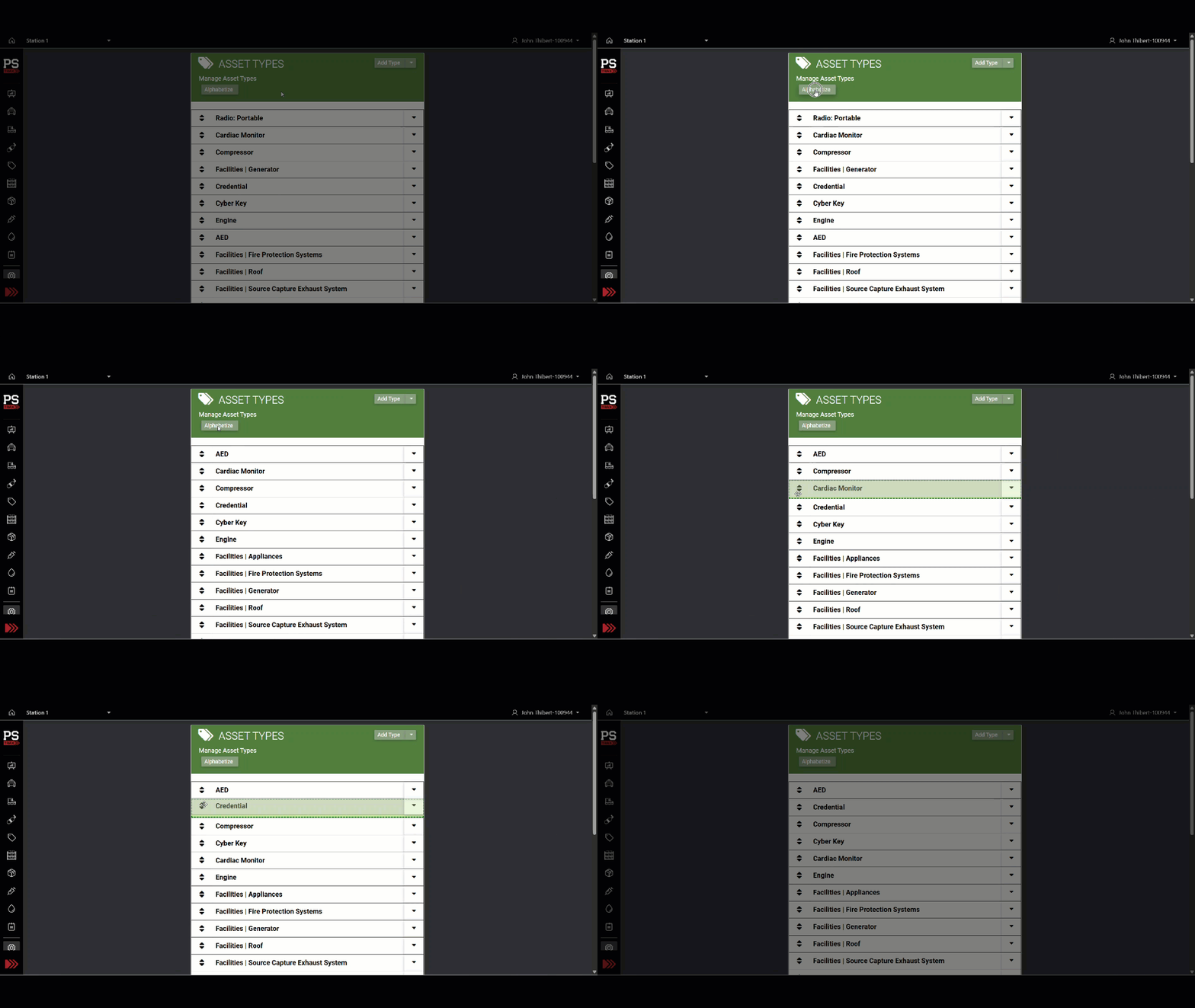
💡This update eliminates the need for manual sorting in large equipment lists while still allowing you to use drag-and-drop for custom reordering whenever you need it. Your preferred sort order will now reflect immediately in the "Add Asset" menus, making equipment management faster and more predictable.
Other Features, Enhancements & Bug Fixes
Vehicle & Station
-
Permanent ID now appears next to vehicle name in the Daily Status Report: The automated Daily Status Report email now displays each vehicle's Permanent ID alongside the vehicle name (for example, "Rescue 5 | CV 1891"). Vehicles with no Permanent ID saved are shown name-only — no trailing pipe — and the change applies to every vehicle type in both the summary and schedule sections.
Assets / PPE / SCBA
-
PPE Logs Now Load Faster: We have significantly optimized search performance on the PPE Logs page. Standard date-range searches now deliver results in seconds, matching the fast performance of the PPE Logs by Task page.
Supplies & Procurement
-
Supply Transfer search now returns every matching item: On the Supply Transfer quantities page, the built-in search now finds every match in the loaded item set instead of only the items visible on screen. You no longer need to fall back to Ctrl+F to confirm a result exists.
-
Find every item instantly with improved Supply Transfer search: We fixed an issue on the Supply Transfer "Enter Quantities" page where the built-in search bar was missing some items. You can now search by compartment name, source location, lot number, or expiration date and see all matching results immediately, eliminating the need to use manual browser shortcuts to find your supplies.
-
Export complete inventory logs with a single click: We resolved an issue where exporting data from the "Supplies Logs by Item" page only included the items currently visible on your screen. Now, when you export to Excel, PDF, or Print, the system will capture your entire filtered dataset—even if it contains thousands of records—ensuring your reports are always complete and accurate.
-
Export complete supply lists and filter with precision: We’ve significantly improved the Supplies List page to ensure your data is always accurate and accessible. Excel exports now include your entire search result set—even for large inventories with thousands of items—rather than being limited to just the first few rows. Additionally, we’ve updated the column filters (Station, Unit, Container, and Sub-Container) to be "smart," meaning they only show options that exist within your current search results, helping you find exactly what you need without hitting "no results" dead-ends.
Controlled Substances
-
Smoother submission for as-needed Controlled Substance checks: We resolved an intermittent issue where submitting an as-needed Controlled Substance (CS) check would occasionally redirect you to the "Open Alerts" page instead of completing the process. This fix ensures that your workflow remains uninterrupted and you are correctly navigated upon finishing a check.
Blood Products
-
View transfer attachments from both sides of the log: We fixed a bug where attachments added during a transfer event were only appearing on the "Transferred Out" entry in your transaction logs. Now, any files or photos attached during a transfer will be visible on both the "Transferred Out" and "Transferred In" log entries, ensuring your records are complete and consistent regardless of which side of the transaction you are viewing.
Other
-
A working PSTrax Support link on PSTrax error pages: The "help" link that appears on PSTrax 404 error pages (any page under /app/) now points to our Knowledge Base support form instead of leading nowhere. If you ever land on a 404, you can jump straight to opening a support ticket with one click.